Ergopaw User Manual
Setting Toggles
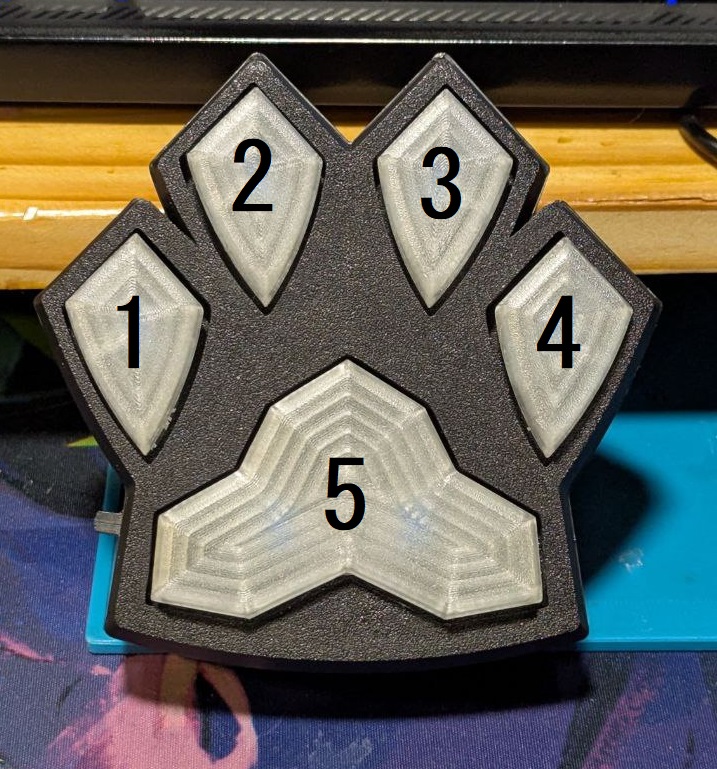
For the purpose of this manual, the buttons on the paw are referred to by number. Please refer to the image below:
Toggle Sound
Hold down finger 1 until the sound either stops or resumes (approximately 5 seconds).
Toggle Vibration
Hold down finger 2 until the paw stops or starts vibrating (approximately 5 seconds).
Setting Modes
The Ergopaw has two setting modes: one for customizing the color and one for selecting a musical scale.
To apply your settings, you must exit the mode properly by holding button 5 until you hear a chime (5 seconds).
Color Mode
Press and hold button 3 until a chime is heard (5 seconds). Once in Color Mode, your paw should resemble the image below:
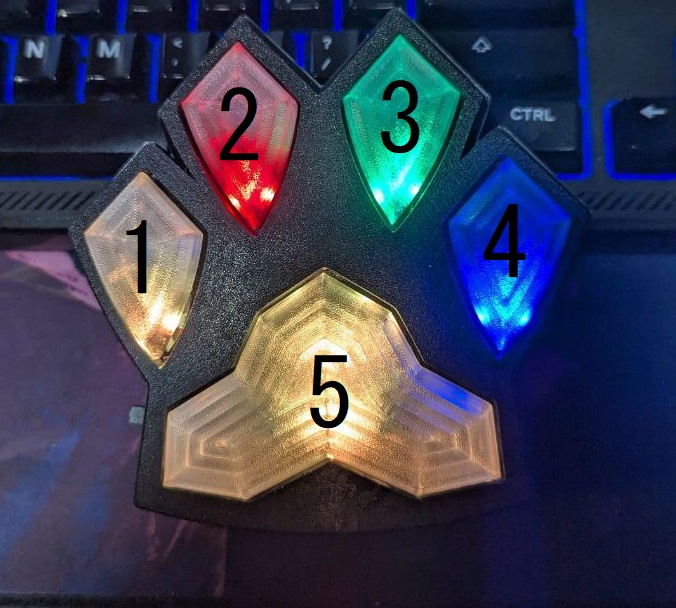
Buttons 2, 3, and 4 change to red, green, and blue respectively. Buttons 1 and 5 display the current color.
Press or hold buttons 2, 3, or 4 to add red, green, or blue to the mix. To subtract a color, hold button 1 while pressing one of those three.
When satisfied, press and hold button 5 until a chime is heard to save your changes and exit Color Mode.
Scale Mode
To change the note scale, press and hold button 4 until a chime plays (5 seconds). The paw will indicate entry into Scale Mode as shown below:
Buttons 1, 2, and 5 become inactive. Button 3 turns cyan, and button 4 turns magenta.
Press button 4 to cycle forward through the 20 built-in musical scales. Press button 3 to cycle backward. Each selection plays a preview sound.
Hold button 5 to confirm your selection and exit the mode.
Pattern Game (Tetra-1)
The main feature of the Ergopaw is the pattern game: Tetra-1.
The goal is to repeat increasingly complex button sequences shown through animations and sounds. The game speeds up as it progresses.
To start a game, press and hold button 5 for 3 seconds until a chime is heard.
The first sequence will be a single illuminated button. Press the matching button after it's shown to proceed. A correct press flashes green and plays a confirmation tone.
Each successful attempt adds another button to the sequence and increases the animation speed. You must wait for the full demo before responding.
If you make a mistake, the paw flashes red and plays a negative tone before exiting the game.
High Scores
The Ergopaw tracks your highest score! If you beat it, the paw flashes cyan instead of green when the new record is set.